Self-Host Your Travel Planner with TREK: Real-Time Collaboration, Maps & MCP
Self-Host Your Travel Planner with TREK: Real-Time Collaboration, Maps & MCP
Planning a trip usually means juggling Google Maps pins, spreadsheet budgets, WhatsApp notes, and packing lists scattered across apps. TREK replaces all of them with a single self-hosted platform — real-time collaborative trip planning with maps, budgets, packing lists, a travel journal, and even a built-in MCP server for AI assistants.
What is TREK?
TREK is an open-source, self-hosted travel planner that brings everything into one place:
- Real-time collaboration — invite travel buddies and plan together via WebSocket sync
- Interactive maps — Leaflet or Mapbox GL with 3D buildings, terrain, and route visualization
- Budget tracking — per-person/per-day splits, multi-currency, pie charts
- Packing lists — templates, member assignments, bag weight tracking
- Travel journal — magazine-style entries with photos, maps, and moods
- Built-in MCP server — 150+ tools so AI assistants (Claude Code, Cursor, etc.) can manage your trips
- PWA support — installable on iOS and Android, works offline
- SSO / OIDC — log in with Google, Apple, Authentik, or any OIDC provider
- 15 languages — including English, French, German, Spanish, Arabic, and more
Why It's Trending
TREK hit 4,800+ GitHub stars in under two months because it fills a real gap: there's no good self-hosted alternative to Wanderlog or TripIt. It launched with an unusually polished UI, real-time multi-user sync, and an MCP server built in — letting AI agents plan trips alongside humans. The single-container deployment makes it trivial to set up.
Architecture
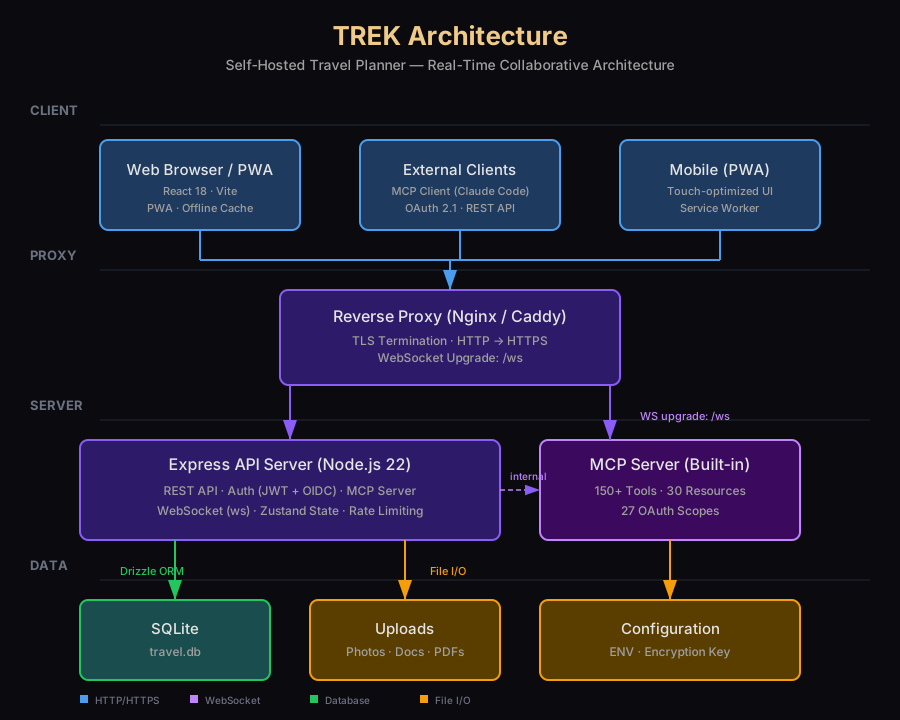
The architecture follows a clean four-tier design:
Client Tier — Users connect via a web browser (React 18 + Vite), a mobile PWA (Service Worker for offline), or external MCP clients over OAuth 2.1. The frontend uses Zustand for state management and communicates via REST + WebSocket.
Proxy Tier — A reverse proxy (Nginx or Caddy) terminates TLS and handles WebSocket upgrades on the /ws path. Caddy handles this automatically; Nginx requires a dedicated location /ws block with the Upgrade header.
Server Tier — The Express server (Node.js 22) handles REST API routing, JWT + OIDC authentication, WebSocket real-time sync, and the built-in MCP server. The MCP server exposes 150+ tools and 30 resources across 27 OAuth scopes.
Data Tier — Everything is stored in a single SQLite database (travel.db) with optional file uploads (photos, docs, PDFs). The encryption key at rest protects sensitive data. Auto-backups are configurable through the admin panel.
Prerequisites
- A server with Docker and Docker Compose installed
- A domain name (optional, for production with TLS)
- 1 GB RAM, 1 CPU minimum
Step-by-Step Setup
1. Quick Start (Single Command)
For testing, you can start TREK with a single docker run command:
ENCRYPTION_KEY=$(openssl rand -hex 32) docker run -d -p 3000:3000 \
-e ENCRYPTION_KEY=$ENCRYPTION_KEY \
-v ./data:/app/data -v ./uploads:/app/uploads \
--name trek mauriceboe/trek
Open http://localhost:3000. On first boot, TREK seeds an admin account. Check the container logs for credentials:
docker logs trek | grep -i admin2. Production Setup with Docker Compose
Create a project directory and add a docker-compose.yml:
mkdir ~/trek && cd ~/trek
export ENCRYPTION_KEY=$(openssl rand -hex 32)
Create docker-compose.yml:
services:
app:
  image: mauriceboe/trek:latest
  container_name: trek
  read_only: true
  security_opt:
    - no-new-privileges:true
  cap_drop:
    - ALL
  cap_add:
    - CHOWN
    - SETUID
    - SETGID
  tmpfs:
    - /tmp:noexec,nosuid,size=64m
  ports:
    - "3000:3000"
  environment:
    - NODE_ENV=production
    - PORT=3000
    - ENCRYPTION_KEY=${ENCRYPTION_KEY}
    - TZ=Europe/Paris
    - LOG_LEVEL=info
    - APP_URL=https://trek.votredomaine.com
  volumes:
    - ./data:/app/data
    - ./uploads:/app/uploads
  restart: unless-stopped
  healthcheck:
    test: ["CMD", "wget", "-qO-", "http://localhost:3000/api/health"]
    interval: 30s
    timeout: 10s
    retries: 3
    start_period: 15s
Start the container:
docker compose up -d3. Set Up a Reverse Proxy with Caddy
Caddy handles TLS and WebSocket upgrades automatically. Add this to your Caddyfile:
trek.yourdomain.com {
    reverse_proxy localhost:3000
}
For Nginx, use a dedicated /ws block for WebSocket upgrades (see the TREK README for the full config).
4. Configure SSO (Optional)
TREK supports any OIDC provider. Add these environment variables to your docker-compose.yml:
- OIDC_ISSUER=https://auth.example.com
- OIDC_CLIENT_ID=trek
- OIDC_CLIENT_SECRET=your-secret
- OIDC_DISPLAY_NAME=Company SSO
5. Enable MCP for AI Assistants
TREK ships with a built-in MCP server. Connect Claude Code or any MCP client:
{
  "mcpServers": {
    "trek": {
      "type": "oauth2",
      "authorizationUrl": "https://trek.yourdomain.com/api/oauth/authorize",
      "tokenUrl": "https://trek.yourdomain.com/api/oauth/token",
      "scopes": ["trip:read", "trip:write", "plan:read", "plan:write"]
    }
  }
}
Once connected, you can ask your AI assistant to create trips, plan day itineraries, build packing lists, and manage budgets directly.
Verification Checklist
- Navigate to
http://localhost:3000and see the login page - Log in with the admin credentials from
docker logs - Create a new trip with a destination
- Search for places on the interactive map
- Add a budget with expenses in different currencies
- Create a packing list and assign items to members
- Invite another user (real-time sync should show changes instantly)
- Install the PWA on your phone (HTTPS required)
- Test offline mode — load the app, disconnect, and browse cached pages
Resources
- GitHub: github.com/mauriceboe/TREK
- Demo: demo-nomad.pakulat.org
- Docker Hub: hub.docker.com/r/mauriceboe/trek
- Discord: discord.gg/NhZBDSd4qW
- Roadmap: kanban.pakulat.org
- License: AGPL v3