
SnapOtter — Self-Host Your Own Image Editor with 48 AI-Powered Tools in One Docker Container
SnapOtter — Self-Host Your Own Image Editor with 48 AI-Powered Tools in One Docker Container
What is SnapOtter?
SnapOtter is an open-source, self-hosted image manipulation platform that packs 48 image processing tools and local AI capabilities into a single Docker container. No cloud dependencies, no external services — your images never leave your machine.
GitHub: github.com/snapotter-hq/snapotter
Stars: ⭐ 1,250+
License: AGPL-3.0 / Commercial
Language: TypeScript (Fastify backend + React frontend), Python (AI bridge)
Why this matters: Self-hosting an image editor usually means either running heavy desktop software (GIMP, Photoshop) or relying on cloud APIs that charge per image. SnapOtter gives you a professional-grade image processing suite — including AI features like background removal and upscaling — that runs entirely on your own hardware. One
docker runand you have 48 tools at your fingertips.
Key Features
| Feature | Details |
|---|---|
| 48 Image Tools | Resize, crop, compress, convert, watermark, color adjust, vectorize, GIF creation, duplicate finder, passport photo generator, and more |
| Local AI | Background removal (rembg/BiRefNet), upscaling (RealESRGAN), face enhancement (GFPGAN), object erasing (LaMa), OCR (PaddleOCR), photo restoration, colorization |
| Pipelines | Chain multiple tools into reusable workflows — process entire folders in batch |
| REST API | Every tool available via HTTP with API key authentication. Interactive Swagger docs at /api/docs |
| Single Container | No Redis, no Postgres, no external databases — just one Docker container with SQLite |
| Multi-arch | AMD64 and ARM64 (Intel, Apple Silicon, Raspberry Pi) |
| GPU Acceleration | Optional NVIDIA GPU support for faster AI inference |
| Privacy First | Everything runs locally. Optional anonymous analytics (opt-in, no image data) |
Architecture Overview
SnapOtter packs a full-featured web application into a single container. The Fastify backend serves both the React SPA frontend and the REST API, routing requests to either the Image Engine (Sharp-based worker pool for standard operations) or the AI Engine (Python dispatcher bridge for ML tasks).
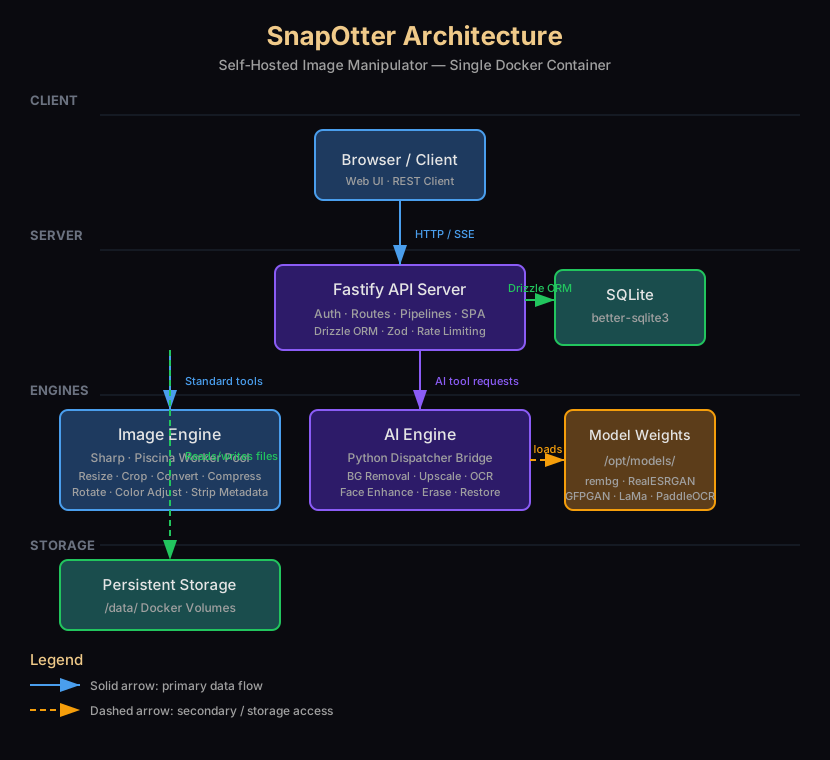
Here's how the request flow works:
- Browser / Client sends an HTTP request to the Fastify API Server (port 1349) with an image file
- The API validates input with Zod, authenticates the user, and routes the request
- Standard tools (resize, crop, convert, compress) are offloaded to Piscina worker threads running Sharp — these don't block the main event loop
- AI tools (background removal, upscaling, OCR) are sent to the Python Dispatcher Bridge, which runs ML models on demand
- The Python bridge loads model weights from disk (
/opt/models/) for the specific tool, runs inference, and releases memory - SQLite (via Drizzle ORM) stores user accounts, job history, file metadata, and runtime settings
- Docker volumes persist uploaded images and processed results in
/data/
The architecture is designed for low idle memory — at rest, only the Fastify server runs (~100-150 MB). Worker threads and the Python dispatcher start on first use and terminate after 30 seconds idle.
Prerequisites
- A server or VPS with Docker and Docker Compose installed
- At least 1 GB RAM (2 GB+ recommended for AI features)
- 10 GB+ free disk space (model weights take ~5-7 GB)
- Optional: NVIDIA GPU with Container Toolkit for GPU acceleration
Step-by-Step Setup
Step 1: Quick Start with Docker (One-Liner)
The fastest way to try SnapOtter:
docker run -d \
--name snapotter \
-p 1349:1349 \
-v snapotter-data:/data \
snapotter/snapotter:latest
Open http://your-server-ip:1349 in your browser. Default credentials:
- Username:
admin - Password:
admin
You'll be prompted to change the password on first login.
Step 2: Docker Compose Setup (Recommended for Production)
Create a docker-compose.yml file:
version: "3.8"

services:
  snapotter:
    image: snapotter/snapotter:latest
    container_name: snapotter
    ports:
      - "1349:1349"
    volumes:
      - snapotter-data:/data
      - snapotter-workspace:/tmp/workspace
    environment:
      - DEFAULT_USERNAME=admin
      - DEFAULT_PASSWORD=your_secure_password
      - MAX_UPLOAD_SIZE_MB=50
      - AUTH_ENABLED=true
      - LOG_LEVEL=info
      - SESSION_DURATION_HOURS=24
      - RATE_LIMIT_PER_MIN=60
    restart: unless-stopped

volumes:
  snapotter-data:
  snapotter-workspace:
Start it:
docker compose up -dStep 3: With NVIDIA GPU Acceleration
If you have an NVIDIA GPU, add --gpus all:
services:
snapotter:
  image: snapotter/snapotter:latest
  container_name: snapotter
  ports:
    - "1349:1349"
  volumes:
    - snapotter-data:/data
    - snapotter-workspace:/tmp/workspace
  environment:
    - DEFAULT_USERNAME=admin
    - DEFAULT_PASSWORD=your_secure_password
    - MAX_UPLOAD_SIZE_MB=50
    - AUTH_ENABLED=true
  deploy:
    resources:
      reservations:
        devices:
          - driver: nvidia
            count: all
            capabilities: [gpu]
  restart: unless-stopped
The container falls back to CPU automatically if no GPU is detected.
Step 4: Configuration Options
SnapOtter exposes these environment variables for customization:
| Variable | Default | Description |
|---|---|---|
PORT |
1349 |
HTTP server port |
DEFAULT_USERNAME |
admin |
Initial admin username |
DEFAULT_PASSWORD |
admin |
Initial admin password |
AUTH_ENABLED |
true |
Enable/disable authentication |
MAX_UPLOAD_SIZE_MB |
20 |
Maximum file upload size |
MAX_BATCH_SIZE |
50 |
Maximum images in batch processing |
CONCURRENT_JOBS |
3 |
Parallel job processing limit |
SESSION_DURATION_HOURS |
24 |
Session TTL |
RATE_LIMIT_PER_MIN |
100 |
API rate limit per IP |
LOG_LEVEL |
info |
Logging verbosity |
CORS_ORIGIN |
* |
CORS allowed origins |
TRUST_PROXY |
false |
Enable if behind a reverse proxy |
ANALYTICS_ENABLED |
true |
Anonymous usage analytics (opt-in) |
STORAGE_MODE |
local |
Storage backend (only local currently) |
Step 5: Reverse Proxy with Nginx (Optional)
Place SnapOtter behind a reverse proxy for HTTPS and a clean domain:
server {
    listen 443 ssl;
    server_name snapotter.yourdomain.com;

    ssl_certificate /etc/letsencrypt/live/snapotter.yourdomain.com/fullchain.pem;
    ssl_certificate_key /etc/letsencrypt/live/snapotter.yourdomain.com/privkey.pem;

    client_max_body_size 500M;

    location / {
        proxy_pass http://127.0.0.1:1349;
        proxy_http_version 1.1;
        proxy_set_header Upgrade $http_upgrade;
        proxy_set_header Connection "upgrade";
        proxy_set_header Host $host;
        proxy_set_header X-Real-IP $remote_addr;
        proxy_set_header X-Forwarded-For $proxy_add_x_forwarded_for;
        proxy_set_header X-Forwarded-Proto $scheme;
        proxy_buffering off;
    }
}
If using a reverse proxy, set TRUST_PROXY=true so SnapOtter uses the correct client IP for rate limiting.
Step 6: Using SnapOtter
Once running, here's what you can do:
Standard image operations:
- Upload an image and choose: Resize, Crop, Rotate, Flip, Convert (PNG/JPEG/WebP/AVIF), Compress, Strip EXIF metadata
- Adjust colors: Brightness, Contrast, Saturation, Grayscale, Sepia, Invert
AI-powered operations:
- Remove Background — One-click background removal for portraits and product photos
- Upscale Image — Increase resolution with RealESRGAN
- Enhance Faces — Restore and enhance facial details with GFPGAN
- Erase Object — Remove unwanted objects with LaMa inpainting
- OCR — Extract text from images with PaddleOCR
- Restore Photo — Colorize and restore old black-and-white photos
- Blur Faces — Automatically detect and blur faces for privacy
Pipelines:
- Go to the Pipelines tab
- Chain multiple tools together (e.g., Upscale → Remove Background → Convert to WebP)
- Save as a reusable workflow
- Run on individual images or entire folders in batch
API Access:
- Generate an API key in Settings
- Use the REST API to integrate SnapOtter into your own scripts
# Example: Remove background via API
curl -X POST http://localhost:1349/api/v1/tools/remove-background \
  -H "X-API-Key: your-api-key" \
  -F "file=@photo.jpg"
Step 7: Resource Management
SnapOtter is efficient with resources:
- Idle: ~100-150 MB RAM (only Fastify server running)
- Standard tool use: Worker threads spawn on demand, terminate after 30 seconds idle
- AI tool use: Python dispatcher starts on first AI request; model weights loaded per-request, released after
- Disk space: ~5-7 GB for model weight files, plus your images
Model weights are pre-downloaded during the Docker build, so the container works fully offline.
Troubleshooting
Cannot access the web UI on port 1349
- Check if the container is running:
docker ps | grep snapotter - Verify the port mapping:
docker logs snapotter | grep "listening" - Check firewall rules:
ufw status(allow port 1349 if needed)
AI tools are slow
- First AI request triggers a cold start (Python dispatcher initialization + model loading)
- Subsequent requests are faster as the dispatcher stays warm
- Consider GPU acceleration with
--gpus all
"Max upload size exceeded"
- Increase
MAX_UPLOAD_SIZE_MBin the environment variables - Also increase Nginx
client_max_body_sizeif behind a reverse proxy
Container keeps restarting
- Check logs:
docker logs snapotter - Ensure
/datavolume is writable:docker exec snapotter touch /data/.test - Verify port 1349 is not already in use
Comparison: SnapOtter vs. Alternatives
SnapOtter
- Self-hosted: ✅ Yes (local only)
- AI Features: ✅ 15 AI tools (local)
- Offline: ✅ Fully offline
- Price: ✅ Free (AGPL)
- Batch Processing: ✅ Yes, with pipelines
- REST API: ✅ Full API + Swagger
- Single Container: ✅ Yes
- GPU Support: ✅ Optional NVIDIA
Imaginary Cloud
- Self-hosted: ❌ Cloud-only
- AI Features: ✅ (cloud API)
- Offline: ❌ Requires internet
- Price: 💰 Pay-per-image
- Batch Processing: ❌ Limited
- REST API: ✅ API available
- Single Container: ❌ Multi-service
- GPU Support: ✅ Cloud GPU
Photopea
- Self-hosted: ❌ Cloud-only
- AI Features: ❌ No
- Offline: ❌ Requires internet
- Price: 💰 Premium
- Batch Processing: ❌ No
- REST API: ❌ No
- Single Container: ❌ N/A
- GPU Support: ❌ No
Resources
- GitHub Repository: github.com/snapotter-hq/snapotter
- Documentation: docs.snapotter.com
- Docker Hub: hub.docker.com/r/snapotter/snapotter
- Architecture Docs: docs.snapotter.com/guide/architecture
- REST API Docs: docs.snapotter.com/api/rest
- Configuration Reference: docs.snapotter.com/guide/configuration
- Discord Community: discord.gg/hr3s7HPUsr
- License: AGPL-3.0