
Ratty — The GPU-Powered Terminal Emulator with Inline 3D Graphics That's Taking the Command Line Into the Third Dimension
Ratty — The GPU-Powered Terminal Emulator with Inline 3D Graphics
For decades, the terminal has been the domain of blinking green text, monospaced fonts, and a strict adherence to two dimensions. Then Orhun Parmaksız — the prolific Rust developer behind tools like bat, gitoxide, and tokio-console — decided to ask a question nobody asked: what if your terminal had a third dimension?
Meet Ratty (🐀🧀), a GPU-rendered terminal emulator that brings inline 3D graphics straight to your command line. It's built on Rust, Ratatui, and the Bevy game engine, and it's taken the open-source world by storm — racking up over 2,100 GitHub stars in under a month, with coverage from The Register and It's FOSS.
Why Is Ratty Trending?
Ratty hit the scene in late April 2026 and has been riding a wave of viral attention for three reasons:
- It's genuinely novel — nobody has shipped a terminal emulator with first-class 3D support before. Ratty renders a spinning 3D rat as your cursor and lets you toggle into a full 3D mode where the terminal surface warps and curves like a TempleOS-inspired display.
- It's from a respected creator — Orhun is the author of
bat(acatclone with syntax highlighting), and a core contributor to Ratatui. The Rust community trusts the quality. - It's not just a gimmick — the Ratty Graphics Protocol (RGP) lets developers embed actual 3D
.objand.glbmodels inline in terminal output, opening up genuinely new use cases like terminal-based CAD and 3D game engines running in the terminal.
Prerequisites
| Component | Requirement |
|---|---|
| GPU | Any GPU supported by Bevy/wgpu (integrated or dedicated) |
| OS | Linux (primary), macOS (experimental support) |
| Rust | Rust toolchain 1.80+ (for building from source) |
| Dependencies | gcc, pkgconf, libfontconfig-dev, libwayland-dev (Linux) |
Installation
Option 1: Cargo Install (Recommended)
cargo install rattyOption 2: Arch Linux
sudo pacman -S rattyOption 3: Prebuilt Binary
Download the latest release from the GitHub releases page.
Option 4: Build from Git
# Install system dependencies (Debian/Ubuntu)
sudo apt update && sudo apt install gcc pkgconf libfontconfig-dev libwayland-dev

# Build and install
cargo install --git https://github.com/orhun/ratty
Configuration
Ratty reads its configuration from ~/.config/ratty/ratty.toml. Copy the default config to get started:
mkdir -p ~/.config/ratty
cp $(dirname $(which ratty))/../config/ratty.toml ~/.config/ratty/ 2>/dev/null || \
curl -s https://raw.githubusercontent.com/orhun/ratty/main/config/ratty.toml > ~/.config/ratty/ratty.toml
Key Configuration Sections
- Window:
width,height,scale_factor,opacity(default: 0.8) - Terminal:
default_cols,default_rows,scrollback(2000 lines) - Font: family, style, size (default: DejaVu Sans Mono 18pt)
- Cursor Model: path to
.obj/.glbfile,scale_factor,brightness,x_offset - Cursor Animation:
spin_speed,bob_speed,bob_amplitude - Theme: 16-color ANSI palette with foreground/background
The default cursor is a 3D model of Cairo Spiny Mouse that spins in place. You can replace it with any .obj or .glb file:
[cursor.model]
path = "path/to/your-model.obj"
scale_factor = 6.0
brightness = 0.5
visible = true

[cursor.animation]
spin_speed = 1.4
bob_speed = 2.2
bob_amplitude = 0.08
Usage
Basic Usage
Launch Ratty like any other terminal emulator:
rattyKey Bindings
Ctrl+Alt+Enter— Toggle 2D / 3D mode (the terminal surface warps into 3D space)Ctrl+Alt+M— Toggle Möbius mode (loop the terminal into a Möbius strip)Ctrl+Alt+↑/↓— Increase / Decrease warp intensityCtrl+Alt+C— Copy selectionCtrl+Alt+V— Paste clipboardAlt+PageUp/PageDown— Scroll page up/downAlt+↑/↓— Scroll line up/downCtrl+=/Ctrl+-— Increase / Decrease font sizeCtrl+Alt+0— Reset font size
3D Mode
Press Ctrl+Alt+Enter to toggle 3D mode. The terminal surface warps into a curved display floating in 3D space. You can adjust the warp intensity with Ctrl+Alt+↑/↓. Press Ctrl+Alt+M for Möbius mode — the terminal wraps into a loop.
Inline 3D Objects via the Ratty Graphics Protocol (RGP)
Applications can embed 3D objects directly in terminal output using the Ratty Graphics Protocol (RGP). RGP supports:
- Registering
.objand.glbassets by path - Placing them at specific terminal cell anchors
- Configuring animation, scale, color, depth
There's also a Ratatui widget (ratatui-rgp) in the Ratty repository for building your own terminal applications with inline 3D objects.
Example projects built on RGP:
- Ratscad — a terminal-based CAD application
- Ratty-runner — an endless runner game inside the terminal
- Big Rat — oversized 3D rat placed directly in your terminal
- Tetro-tui — Tetris running with 3D rendering in Ratty
Architecture
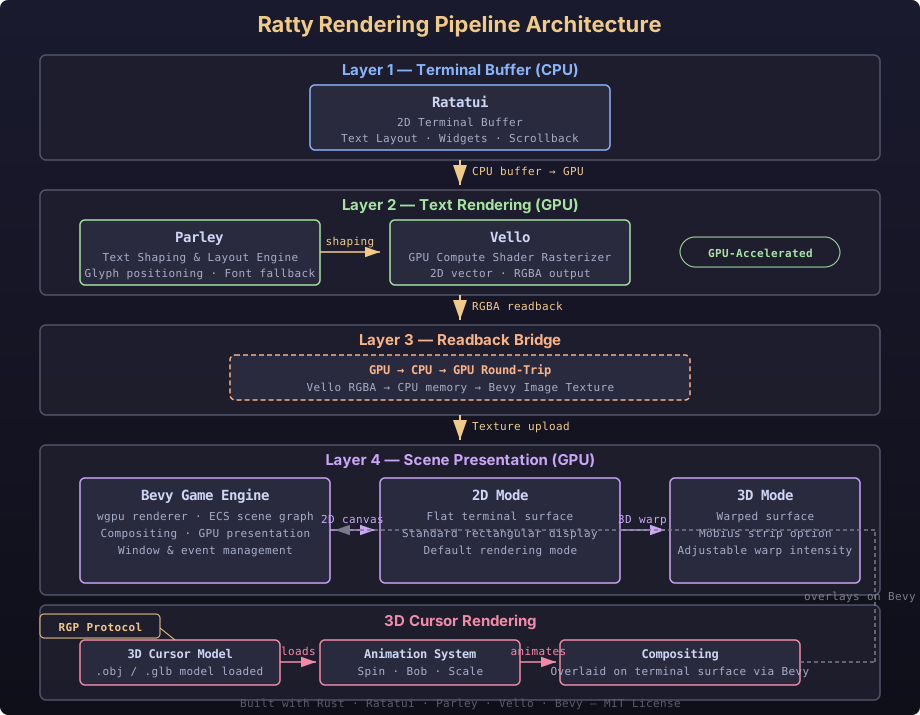
Ratty's rendering pipeline is a multi-stage bridge between CPU-based terminal rendering and GPU-accelerated graphics:
Layer 1 — Terminal Buffer (CPU): Ratatui builds the 2D terminal buffer on the CPU. This handles all standard terminal output — text, layouts, widgets, and scrollback.
Layer 2 — Text Rendering (GPU): Parley and Vello take over for GPU-accelerated text shaping and rendering. Font glyphs are shaped with Parley (a text layout engine) and rasterized with Vello (a GPU compute shader 2D renderer).
Layer 3 — Readback Bridge (CPU→GPU): The RGBA pixel data is read back from GPU memory to CPU memory via the readback bridge, then copied into a Bevy image texture.
Layer 4 — Scene Presentation (GPU): Bevy (the Rust game engine) takes the image texture and presents it — either as a flat 2D surface or as a warped 3D surface in the 3D mode viewport.
3D Cursor Rendering: The 3D cursor model (.obj/.glb) is rendered separately by Bevy's 3D scene renderer, composited over the terminal surface in the final frame.
Note: The current architecture uses a GPU-powered bridge (Parley/Vello on GPU → readback to CPU → copy to Bevy). It's not yet a fully GPU-resident shared-texture path — that would require a dedicated Bevy render integration, but the framework is in place for it.
Verification Checklist
- Ratty launches and displays a terminal window with a spinning 3D rat cursor
Ctrl+Alt+Entertoggles 3D modeCtrl+Alt+Mtoggles Möbius mode- Font size adjustments work (
Ctrl+=/Ctrl+-) - Custom
.objcursor model loads correctly - Theme colors render correctly (customizable in
ratty.toml) - Scrollback works (2000 lines by default)
- Copy/paste works (
Ctrl+Alt+C/Ctrl+Alt+V) - Ratty Graphics Protocol renders inline 3D models
Comparison: Ratty vs Other Modern Terminals
- Kitty — GPU-accelerated but 2D only; has Kitty Graphics Protocol for images but no 3D support
- Alacritty — GPU-accelerated, minimal, fast — but no inline graphics or 3D
- WezTerm — GPU-accelerated, multiplexer support, image protocol — no 3D
- Ghostty — GPU-accelerated, native UI — no 3D rendering
- Rio — GPU-accelerated, web technologies — no 3D
- Ratty — GPU-rendered, 3D cursor, 3D mode, inline 3D objects via RGP protocol
Ratty is the only terminal emulator that brings a 3D rendering engine directly into the terminal experience. For day-to-day terminal work, you'll likely prefer a traditional emulator — but for creative demos, terminal-based games, CAD tools, and the sheer wow factor, Ratty is unmatched.
Resources
- GitHub: github.com/orhun/ratty
- Website: ratty.orhun.dev
- Behind the Scenes Blog Post: blog.orhun.dev/introducing-ratty
- Demo Video: YouTube
- Ratty Graphics Protocol: protocols/graphics.md
- Ratscad (Terminal CAD): github.com/qewer33/ratscad
- Ratty-runner: github.com/ozzyocak/ratty-runner
- Author: Orhun Parmaksız (@orhun)
- License: MIT