
Homelable — Self-Hosted Infrastructure Visualizer for Your Homelab
Homelable — Self-Hosted Infrastructure Visualizer for Your Homelab
What is Homelable?
Homelable is an open-source, self-hosted infrastructure visualization tool that turns your homelab topology into an interactive, beautiful canvas diagram. It auto-discovers devices on your network via nmap scans, imports Zigbee2MQTT device hierarchies, monitors service health with multiple check methods (ping, HTTP, TCP, SSH), and displays everything in a clean, customizable web interface.
GitHub: github.com/Pouzor/homelable
Website: homelable.net
Stars: ⭐ 1,800+
License: MIT
Language: TypeScript + Python (FastAPI)
Why this matters: If you run a homelab with multiple servers, containers, IoT devices, and Zigbee sensors — keeping track of what's where and what's online becomes a mess of spreadsheets and sticky notes. Homelable solves this by scanning your network, creating a live topology map, and giving you real-time health status at a glance.
Key Features
| Feature | Details |
|---|---|
| Network Discovery | nmap-based scanning with auto-populated pending devices queue |
| Zigbee Import | Import Zigbee2MQTT device hierarchy — coordinator, routers, end devices with LQI |
| Health Monitoring | Ping, HTTP, HTTPS, TCP, SSH, Prometheus, and health endpoint checks |
| Interactive Canvas | Drag, pan, zoom — customize node positions, colors, and labels |
| Live View | Read-only public canvas URL for sharing with your network |
| MCP Server | AI integration via Model Context Protocol — read and modify your topology |
| gethomepage Widget | Embed stats in your gethomepage dashboard |
| Docker-native | One-command install via Docker Compose |
Architecture Overview
Homelable follows a modular three-tier architecture: a React frontend (with interactive canvas), a Python FastAPI backend (with SQLite persistence), and an optional MCP server for AI integration. The backend orchestrates network scanning, health checks, and data storage, while the frontend renders everything as a draggable topology canvas.
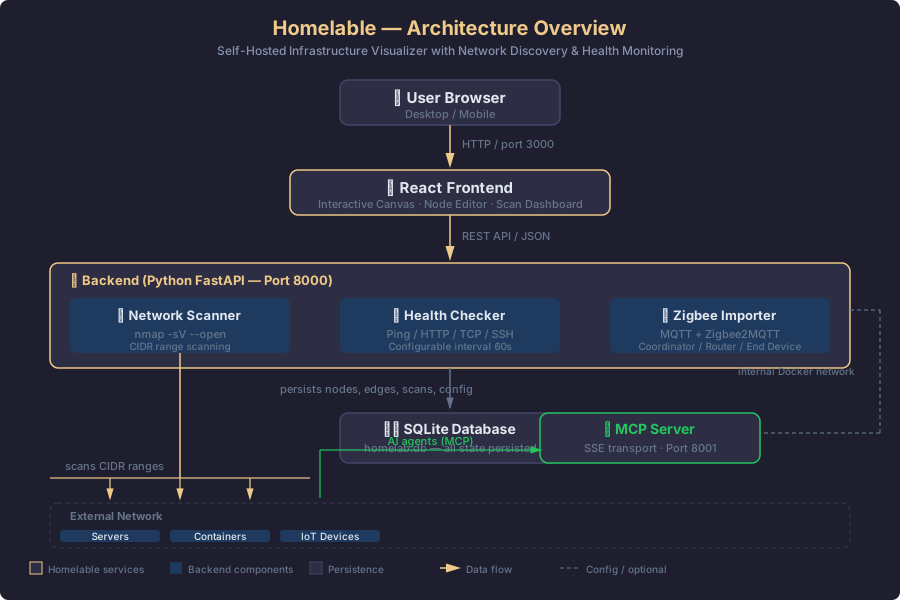
Here's how the components interact:
- User Browser loads the React canvas UI from the Frontend (port 3000)
- The Network Scanner runs
nmap -sV --openagainst configured CIDR ranges and populates the Pending Devices queue - The Health Checker periodically tests each node using its configured method (ping, HTTP, TCP, etc.) and updates the status
- The Zigbee Importer connects to your MQTT broker, imports Zigbee2MQTT device hierarchy, and places devices on the canvas
- The MCP Server (port 8001) exposes read/write topology access to AI clients over SSE transport
- SQLite persists nodes, edges, scan history, and configuration
- The Frontend renders the interactive canvas with live status updates via API polling
Data flows bidirectionally: the frontend polls the backend for node status, and the backend pushes scan results and health updates. The architecture is stateless from the frontend's perspective — all state lives in SQLite.
Prerequisites
- A server with Docker and Docker Compose installed
- A modern web browser (Chrome, Firefox, or Edge)
- Optional but recommended: an nmap-capable host for network scanning
- Optional: an MQTT broker (Mosquitto) + Zigbee2MQTT setup for Zigbee import
- Minimum 512 MB RAM, 1 GB recommended
Step-by-Step Setup Guide
Step 1: Quick Start with Docker
The fastest way to get Homelable running:
curl -fsSL https://raw.githubusercontent.com/Pouzor/homelable/main/install.sh | bash
cd homelable && docker compose up -d
Open http://localhost:3000 — login with admin / admin.
The install script creates a homelable/ directory with your docker-compose.yml and .env file.
Step 2: Custom Installation from Source
For more control, clone the repository directly:
git clone https://github.com/Pouzor/homelable.git
cd homelable
cp .env.example .env
docker compose up -d
Step 3: Configure Your Environment
Edit the .env file in your homelable/ directory:
# SECRET_KEY — change this to a random string
SECRET_KEY=your-random-secret-key-here

# Auth — change from default admin/admin
AUTH_USERNAME=homelab
AUTH_PASSWORD_HASH='$2b$12$...'   # bcrypt hash, wrap in single quotes

# CIDR ranges to scan
SCANNER_RANGES=["192.168.1.0/24"]

# How often to check node status (seconds)
STATUS_CHECKER_INTERVAL=60
To generate a bcrypt password hash:
docker compose exec backend python -c "from passlib.context import CryptContext; print(CryptContext(schemes=['bcrypt']).hash('yourpassword'))"⚠️ Important: bcrypt hashes contain
$characters. In the.envfile, wrap the hash in single quotes:AUTH_PASSWORD_HASH='$2b$12$...'
Step 4: Run a Network Scan
Once Homelable is running:
- Log in at
http://localhost:3000 - Click Scan Network in the left sidebar
- Enter your CIDR range (e.g.,
192.168.1.0/24) - Wait for the scan to complete — the Scan History tab refreshes every 3 seconds
- Review the Pending Devices list
- Approve devices to add them as nodes on the canvas, or hide/ignore discovered devices
If the scan fails with a permissions error, run it manually with elevated privileges:
cd backend
sudo python ../scripts/run_scan.py 192.168.1.0/24
Or give nmap the NET_RAW capability:
sudo setcap cap_net_raw+ep $(which nmap)Step 5: Configure Node Health Checks
Each node on your canvas can have an independent health check method. Click a node to edit its settings:
| Method | Description | Example |
|---|---|---|
ping |
ICMP ping | Good for network devices |
http |
GET request, success if status < 500 | Web services |
https |
GET with TLS verification | HTTPS endpoints |
tcp |
TCP connect to host:port |
Database ports |
ssh |
TCP connect to port 22 | SSH-accessible servers |
prometheus |
GET /metrics |
Prometheus exporters |
health |
GET /health |
Health endpoint |
The backend runs the configured check at the interval set in STATUS_CHECKER_INTERVAL (default: 60s) and updates the node's visual status on the canvas — green for online, red for offline, gray for unknown.
Step 6: Import Zigbee2MQTT Devices (Optional)
If you have a Zigbee network managed by Zigbee2MQTT, Homelable can import your device topology:
- Click Zigbee Import in the left sidebar
- Enter your MQTT broker details (host, port, optional credentials)
- Set the base topic (default:
zigbee2mqtt) - Click Test Connection to verify reachability
- Click Fetch Devices — devices appear grouped by type (Coordinator / Router / End Device)
- Select the devices you want and click Add N to Canvas
Devices are placed in a grid with IoT edges, and the hierarchy is automatically set: coordinator → routers → end devices (with parent_id). LQI (Link Quality Indicator) is stored as a node property.
Step 7: Set Up the MCP Server for AI Integration (Optional)
Homelable includes a Model Context Protocol server that lets AI agents (Claude Code, Claude Desktop, Open WebUI) read and write your topology.
Add these keys to your .env:
# Authenticates AI clients → MCP server
MCP_API_KEY=mcp_sk_your_key_here
# Authenticates MCP server → backend (internal Docker network only)
MCP_SERVICE_KEY=svc_changeme
Generate keys with:
python3 -c "import secrets; print(secrets.token_hex(32))"Start the MCP service:
docker compose up -d mcpConfigure Claude Code:
claude mcp add --transport sse homelable http://<your-homelab-ip>:8001/mcp \
--header "X-API-Key: mcp_sk_your_key_here"
Now you can ask AI agents questions like:
- "What nodes are currently offline?"
- "Add a new LXC container named pihole at 192.168.1.5, connected to my switch."
- "Show me the full canvas topology."
Step 8: Enable Live View (Optional)
Share a read-only snapshot of your canvas with anyone on your network — no login required:
# Add to .env
LIVEVIEW_KEY=your-secret-key
Restart the backend:
docker compose restart backendAccess at: http://<your-homelab-ip>:3000/view?key=***
Step 9: Enable gethomepage Widget (Optional)
Expose a JSON stats endpoint for your gethomepage dashboard:
# Add to .env
HOMEPAGE_API_KEY=your-secret-key
Restart the backend, then add to your gethomepage services.yaml:
- Homelab:
- Homelable:
    icon: mdi-lan
    href: http://homelable.local:3000
    widget:
      type: customapi
      url: http://homelable.local:8000/api/v1/stats/summary
      method: GET
      headers:
        X-API-Key: your-secret-key
      mappings:
        - field: nodes           ; label: Nodes
        - field: online          ; label: Online
        - field: offline         ; label: Offline
        - field: pending_devices ; label: Pending
        - field: zigbee_devices  ; label: Zigbee
Step 10: Customize the Canvas
Homelable offers extensive customization options directly in the UI:
- Drag nodes to any position on the canvas
- Edit labels and node colors via the edit panel
- Select design styles from pre-built themes or create your own
- Change connection types between nodes (straight, curved, or dashed)
- Export your canvas as a PNG image
- Add manual nodes for devices not discovered by scanning
Proxmox LXC Installation
If you run Proxmox VE, you can install Homelable directly as an LXC container using community scripts:
bash -c "$(curl -fsSL https://raw.githubusercontent.com/community-scripts/ProxmoxVE/main/ct/homelable.sh)"This creates a turnkey LXC with Docker and Homelable pre-installed — ideal for Proxmox users wanting quick deployment without manual setup.
Docker Compose Reference
Here's the full docker-compose.yml for reference:
services:
  backend:
    build:
      context: .
      dockerfile: Dockerfile.backend
    restart: unless-stopped
    env_file:
      - .env
    environment:
      SQLITE_PATH: /app/data/homelab.db
    volumes:
      - backend_data:/app/data
    networks:
      - homelable
    cap_add:
      - NET_RAW
    healthcheck:
      test: ["CMD", "curl", "-f", "http://localhost:8000/api/v1/health"]
      interval: 10s
      timeout: 5s
      retries: 6
      start_period: 15s

  mcp:
    build:
      context: ./mcp
      dockerfile: Dockerfile.mcp
    restart: unless-stopped
    ports:
      - "8001:8001"
    env_file:
      - .env
    environment:
      BACKEND_URL: "http://backend:8000"
    depends_on:
      - backend
    networks:
      - homelable

  frontend:
    build:
      context: .
      dockerfile: Dockerfile.frontend
    restart: unless-stopped
    ports:
      - "3000:80"
    depends_on:
      - backend
    networks:
      - homelable

volumes:
  backend_data:

networks:
  homelable:
    driver: bridge
Verification Checklist
- Homelable loads at
http://YOUR_IP:3000 - Login works with configured credentials
- Network scan discovers devices on your LAN
- Approved devices appear as nodes on the canvas
- Node health checks show online/offline status correctly
- Nodes update status within the configured interval
- Zigbee import connects to MQTT broker and imports devices
- Canvas can be panned, zoomed, and nodes can be dragged
- Live View URL displays read-only canvas
- MCP server responds to API calls (if configured)
- gethomepage widget shows stats (if configured)
Tips & Best Practices
- Start with a small scan range — scanning a full
/16subnet takes time. Begin with your main VLAN (e.g.,/24) and expand gradually. - Label everything immediately — when the scan discovers devices, approve and label them right away. Unlabeled devices become confusing fast.
- Set
NET_RAWcapability — gives nmap the permissions it needs without running the backend as root. - Run the backend and MCP server on Docker's internal network — the MCP server communicates with the backend over the internal bridge, never exposing the backend API directly.
- Use the MCP server with AI agents — it's a powerful way to query your homelab state from natural language. Ask "What's offline?" instead of clicking through the UI.
- Combine with gethomepage — Homelable's stats widget gives you a quick homelab health overview right in your main dashboard.
- Back up your SQLite database —
homelab.dbcontains all your nodes, edges, and configuration. Back it up regularly.
Troubleshooting
Network scan fails with "permission denied"
→ nmap needs root or NET_RAW capability for SYN scans. Run sudo setcap cap_net_raw+ep $(which nmap) or use the manual scan script.
"Connection refused" on MQTT import → Ensure your MQTT broker is reachable from the Homelable backend container. If they're on separate Docker networks, adjust the network configuration.
Canvas is blank after login → You may have no nodes yet. Run a network scan or add a manual node to get started.
Nodes show "unknown" status
→ The health check interval hasn't elapsed yet. Wait for the STATUS_CHECKER_INTERVAL to pass, or restart the backend.
Frontend shows an empty page
→ Check if the frontend can reach the backend API. Verify CORS_ORIGINS in .env includes your frontend URL (e.g., http://localhost:3000).