
Monitor Your NVIDIA GPUs in Real Time with GPU Hot
Monitor Your NVIDIA GPUs in Real Time with GPU Hot
If you run AI workloads, LLM inference servers, or any GPU-intensive applications, you've probably felt the pain of not knowing what your GPUs are doing at a glance. The nvidia-smi command is fine for a quick check, but it doesn't give you historical trends, multi-node aggregation, or a dashboard you can pin to your browser.
Enter GPU Hot — a lightweight, open-source, Docker-based GPU monitoring dashboard that gives you real-time visibility into your NVIDIA GPUs with sub-second refresh rates. It's designed for both single-machine setups and multi-node clusters, making it ideal for homelabs, AI research servers, and production GPU fleets.
Why Is It Trending?
GPU Hot has gained over 1,500 GitHub stars in a short time because it solves a genuine pain point: GPU monitoring shouldn't require a PhD in observability. Unlike full-blown solutions like Prometheus + Grafana + DCGM Exporter (which require multiple services, complex configuration, and significant resources), GPU Hot is a single Docker container that works out of the box. Just run one command and you have a polished dashboard with charts, real-time WebSocket updates, and multi-node aggregation.
Architecture Overview
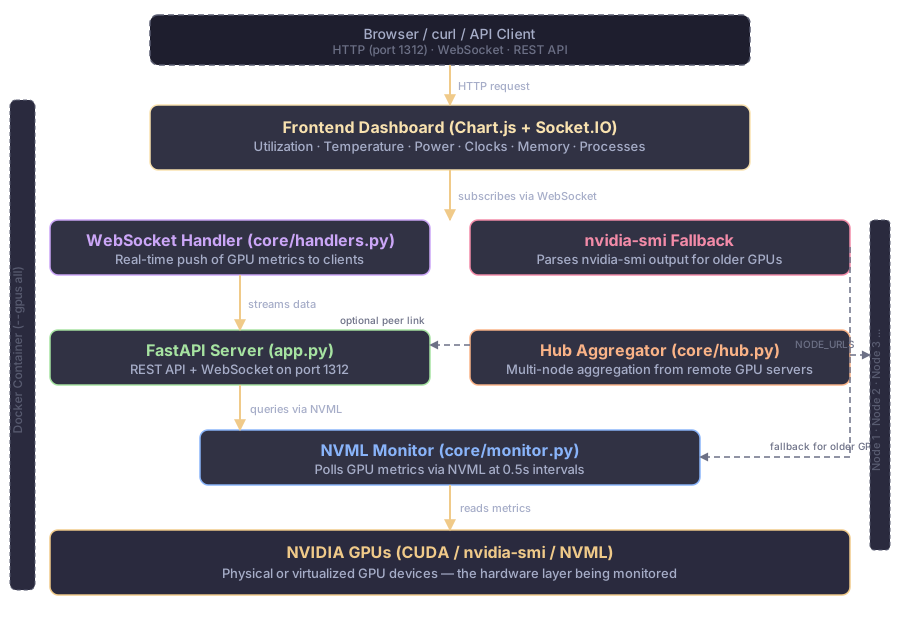
The architecture follows a clean vertical stack:
- Browser / API Client — Access the dashboard via HTTP on port 1312, or use the REST API / WebSocket for programmatic access
- Frontend Dashboard — A Chart.js + Socket.IO-based UI that renders real-time GPU metrics with interactive charts
- WebSocket Handler — Pushes GPU metrics to all connected clients in real time (sub-second intervals)
- nvidia-smi Fallback — Alternative data source for older GPUs that don't support NVML directly
- FastAPI Server — Core web server exposing REST endpoints and WebSocket connections, built with FastAPI + Uvicorn
- NVML Monitor — Polls GPU metrics via the NVIDIA Management Library (nvidia-ml-py) every 0.5 seconds
- NVIDIA GPUs — The hardware layer being monitored (CUDA, nvidia-smi, NVML)
- Hub Aggregator — Optional multi-node mode that collects metrics from remote GPU servers via
NODE_URLS
Optional peer links connect the Hub Aggregator to the FastAPI server for multi-node setups, and the nvidia-smi fallback provides backward compatibility for older GPU hardware.
Prerequisites
- A Linux machine with NVIDIA GPUs (or a VM with GPU passthrough)
- Docker installed (20.10+)
- NVIDIA Container Toolkit installed
- NVIDIA drivers installed (test with
nvidia-smi)
Installation
GPU Hot takes less than 60 seconds to set up. Here's how:
Step 1: Install NVIDIA Container Toolkit
If you haven't already, install the NVIDIA Container Toolkit to enable GPU access inside Docker:
# Ubuntu / Debian
curl -fsSL https://nvidia.github.io/libnvidia-container/gpgkey | sudo gpg --dearmor -o /usr/share/keyrings/nvidia-container-toolkit-keyring.gpg
curl -s -L https://nvidia.github.io/libnvidia-container/stable/deb/nvidia-container-toolkit.list | \
  sed 's#deb https://#deb [signed-by=/usr/share/keyrings/nvidia-container-toolkit-keyring.gpg] https://#g' | \
  sudo tee /etc/apt/sources.list.d/nvidia-container-toolkit.list
sudo apt-get update
sudo apt-get install -y nvidia-container-toolkit
sudo systemctl restart docker
Step 2: Run GPU Hot (Single Machine)
docker run -d \
--gpus all \
-p 1312:1312 \
--name gpu-hot \
--restart unless-stopped \
ghcr.io/psalias2006/gpu-hot:latest
That's it. Open http://localhost:1312 in your browser and you'll see the dashboard.
Step 3: Verify It's Working
# Check the container is running
docker ps | grep gpu-hot

# Test the API
curl -s http://localhost:1312/api/gpu-data | head -30

# Check the dashboard loads
curl -s http://localhost:1312/ | grep -o '<title>.*</title>'
Step 4: Monitor Specific GPUs
If you only want to monitor specific GPUs:
docker run -d \
--gpus all \
-p 1312:1312 \
-e NVIDIA_VISIBLE_DEVICES=0,1 \
--name gpu-hot \
--restart unless-stopped \
ghcr.io/psalias2006/gpu-hot:latest
Multi-Node Setup
For monitoring multiple GPU servers from a single dashboard:
On each GPU node:
docker run -d \
--gpus all \
-p 1312:1312 \
-e NODE_NAME=$(hostname) \
--name gpu-hot \
--restart unless-stopped \
ghcr.io/psalias2006/gpu-hot:latest
On the hub machine (can be a lightweight VM with no GPU):
docker run -d \
-p 1312:1312 \
-e GPU_HOT_MODE=hub \
-e NODE_URLS=http://gpu-server-1:1312,http://gpu-server-2:1312,http://gpu-server-3:1312 \
--name gpu-hot-hub \
--restart unless-stopped \
ghcr.io/psalias2006/gpu-hot:latest
Now all your GPU servers appear under one dashboard at http://hub-ip:1312.
Using Docker Compose
For a more reproducible setup, use Docker Compose:
services:
gpu-hot:
  image: ghcr.io/psalias2006/gpu-hot:latest
  container_name: gpu-hot
  ports:
    - "1312:1312"
  environment:
    - NVIDIA_VISIBLE_DEVICES=all
    - NVIDIA_DRIVER_CAPABILITIES=all
    - NODE_NAME=${HOSTNAME}
  deploy:
    resources:
      reservations:
        devices:
          - driver: nvidia
            count: all
            capabilities: [gpu]
  init: true
  pid: "host"
  restart: unless-stopped
  healthcheck:
    test: ["CMD", "curl", "-f", "http://localhost:1312/api/gpu-data"]
    interval: 30s
    timeout: 10s
    retries: 3
    start_period: 40s
Save this as compose.yml and run:
docker compose up -dConfiguration Options
GPU Hot uses environment variables for configuration:
| Variable | Description | Default |
|---|---|---|
NVIDIA_VISIBLE_DEVICES |
Comma-separated GPU indices to monitor | all |
NVIDIA_SMI |
Force nvidia-smi mode for older GPUs | false |
GPU_HOT_MODE |
Set to hub for multi-node aggregation |
(single node) |
NODE_NAME |
Display name for this node | hostname |
NODE_URLS |
Comma-separated node URLs (hub mode) | — |
What Metrics Can You See?
The dashboard provides real-time charts and cards for:
- GPU Utilization — Percentage of GPU compute capacity in use
- Temperature — Current GPU temperature in Celsius
- Memory Usage — Used vs total VRAM
- Power Draw — Current power consumption in watts
- Fan Speed — Fan RPM and percentage
- Clock Speeds — Core and memory clock frequencies
- PCIe Info — Link speed and width
- P-State — Performance state
- Throttle Status — Thermal and power throttling indicators
- Encoder/Decoder Sessions — Hardware encode/decode utilization
- Process Monitoring — Per-process GPU memory usage with PID
API Reference
GPU Hot exposes a simple API for programmatic access:
# Get JSON metrics snapshot
curl http://localhost:1312/api/gpu-data

# Check version
curl http://localhost:1312/api/version
For real-time streaming, connect to the WebSocket endpoint:
const ws = new WebSocket('ws://localhost:1312/socket.io/');
ws.onmessage = (event) => {
  const data = JSON.parse(event.data);
  console.log(data.gpus);      // per-GPU metrics
  console.log(data.processes); // active GPU processes
  console.log(data.system);    // host CPU, RAM, swap, disk, network
};
Troubleshooting
No GPUs detected in dashboard:
# Verify nvidia-smi works on the host
nvidia-smi

# Test Docker GPU access
docker run --rm --gpus all nvidia/cuda:12.1.0-base-ubuntu22.04 nvidia-smi
Hub can't connect to nodes:
# Test connectivity from the hub machine
curl http://node-ip:1312/api/gpu-data

# Check firewall
sudo ufw allow 1312/tcp
Performance issues: Increase the update interval by building from source and modifying core/config.py:
UPDATE_INTERVAL = 1.0 # Default is 0.5 secondsComparison: GPU Hot vs Alternatives
- GPU Hot — Single Docker container, sub-second refresh, multi-node hub, built-in charts. Best for quick setup and real-time monitoring.
- Prometheus + DCGM Exporter + Grafana — Full observability stack with alerting, long-term storage, and custom dashboards. Overkill for most use cases.
- nvidia-smi + watch — No history, no dashboard, no multi-node.
- nvtop — Terminal-based, great for interactive use but not web-accessible.
Resources
- GitHub: github.com/psalias2006/gpu-hot
- Live Demo: psalias2006.github.io/gpu-hot/demo.html
- License: MIT
- NVIDIA Container Toolkit Docs: docs.nvidia.com/datacenter/cloud-native/container-toolkit