
Hermes Agent on Dokploy: Build a Self-Hosted AI Development Agent with MCP
Introduction
AI coding agents are transformative — but relying on cloud-hosted services means recurring costs, data privacy concerns, and API limitations. What if you could run your own agent, persistently, on a $6/month VPS?
Enter Hermes Agent — an open-source, terminal-native AI agent that can perform multi-step tasks, write code, browse the web, and orchestrate infrastructure. Combined with Dokploy — a self-hosted PaaS that exposes a full MCP (Model Context Protocol) API — you get a development agent that can deploy and manage its own infrastructure.
This guide walks through the exact setup I use daily.
1. Architecture Overview
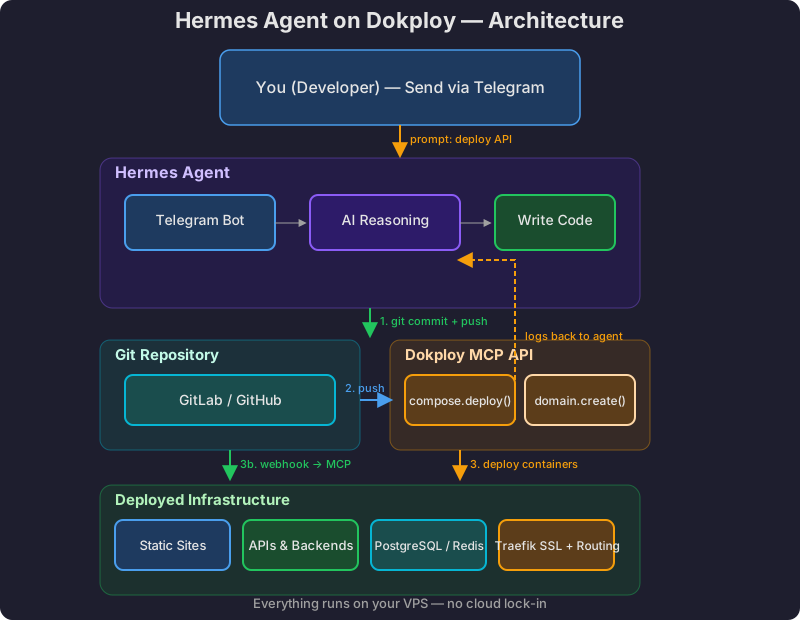
The flow: You send a prompt via Telegram → Hermes Agent reasons and acts (writes code, commits, pushes to GitLab) → Git webhook or Dokploy MCP pulls the change → Dokploy calls compose.deploy() → containers update → logs feed back to the agent for verification. Everything runs on your own VPS — no cloud lock-in.
2. Prerequisites
- A VPS with at least 1 vCPU, 4GB RAM (I use a cheap Hostinger VPS)
- Ubuntu 24.04 or similar
- Docker and Docker Compose installed
- Dokploy installed on the VPS (dokploy.com)
- A domain name pointed to your VPS IP
3. Setting Up Dokploy
If you haven't installed Dokploy yet:
curl -sSL https://dokploy.com/install.sh | shThis installs Dokploy with Traefik as a reverse proxy, Let's Encrypt for SSL, and a web UI at admin.yourdomain.com.
After setup, you'll see a web dashboard where you can:
- Create Projects and Environments
- Deploy Docker Compose stacks
- Add domains with automatic SSL
- View logs and manage deployments
Key insight: The Dokploy MCP API runs at the same base URL as the web UI — no extra services needed.
4. Hermes Agent Docker Compose
Create a docker-compose.yml for Hermes Agent:
services:
  hermes:
    image: ghcr.io/nousresearch/hermes-agent:latest
    container_name: hermes-agent
    volumes:
      - ./config:/home/user/.config/hermes
      - ./data:/home/user/.local/share/hermes
      - ./ssh:/home/user/.ssh
      - /var/run/docker.sock:/var/run/docker.sock:ro
    environment:
      - HERMES_PROVIDER=openrouter
      - HERMES_MODEL=anthropic/claude-sonnet-4
      - HERMES_API_KEY=${OPENROUTER_API_KEY}
      - TELEGRAM_BOT_TOKEN=${TELEGRAM_BOT_TOKEN}
      - TELEGRAM_CHAT_ID=${TELEGRAM_CHAT_ID}
      - GIT_TOKEN=${GIT_TOKEN}
      - DOKPLOY_URL=https://admin.yourdomain.com
      - DOKPLOY_API_KEY=${DOKPLOY_API_KEY}
    ports:
      - "3000"
    restart: unless-stopped
    networks:
      - dokploy-network
    deploy:
      resources:
        limits:
          memory: 1024M
          cpus: '0.75'

networks:
  dokploy-network:
    external: true
What each volume does:
| Volume | Purpose |
|---|---|
./config |
Stores Hermes config. Auto-generated on first run — edit it afterwards |
./data |
Persistent state: skills, memory, cron jobs |
./ssh |
Git SSH keys for pushing to GitLab/GitHub |
docker.sock |
(Optional) Lets Hermes run Docker commands on the host |
First run: When the container starts for the first time, Hermes generates a default
config/hermes.yamlautomatically. Do NOT create this file manually — let Hermes bootstrap it, then edit the sections you need.
Environment Variables
# AI Provider (used for the agent's reasoning)
OPENROUTER_API_KEY=sk-or-v1-...

# Telegram Bot (for chat interaction)
TELEGRAM_BOT_TOKEN=123456:ABC-DEF1234ghIkl-zyx57W2v1u123ew11
TELEGRAM_CHAT_ID=7452264766

# GitLab/GitHub access token (for repository operations)
GIT_TOKEN=glpat-...

# Dokploy MCP API key
DOKPLOY_API_KEY=dpk_...
5. Configuration: hermes.yaml
After the first container start, Hermes generates a default config/hermes.yaml in your mounted volume. Open it and add the following sections:
Enable Telegram messaging
messaging:
telegram:
  enabled: true
  bot_token: "${TELEGRAM_BOT_TOKEN}"
  default_chat_id: "${TELEGRAM_CHAT_ID}"
Register Dokploy MCP servers
mcp_servers:
dokploy:
  command: npx
  args:
    - -y
    - '@dokploy/mcp'
  env:
    DOKPLOY_API_KEY: ${DOKPLOY_API_KEY}
    DOKPLOY_URL: ${DOKPLOY_URL}
  timeout: 120

gitlab:
  command: npx
  args:
    - -y
    - '@modelcontextprotocol/server-gitlab'
  env:
    GITLAB_PERSONAL_ACCESS_TOKEN: ${GIT_TOKEN}
    GITLAB_API_URL: https://gitlab.com/api/v4
Set provider and model
provider: openrouter
model: anthropic/claude-sonnet-4
Enable toolsets
toolsets:
- terminal
- file
- web
- search
- skills
- cronjob
- memory
Alternatively, use the CLI inside the container to configure without editing YAML:
# Connect to the running container
docker exec -it hermes-agent bash

# Run the setup wizard
hermes setup

# Or set individual values
hermes config set provider openrouter
hermes config set model anthropic/claude-sonnet-4

# Add Dokploy MCP server via CLI
hermes mcp add dokploy \
  --command "npx -y @dokploy/mcp" \
  --env "DOKPLOY_API_KEY=${DOKPLOY_API_KEY}" \
  --env "DOKPLOY_URL=${DOKPLOY_URL}"

# Add GitLab MCP server via CLI
hermes mcp add gitlab \
  --command "npx -y @modelcontextprotocol/server-gitlab" \
  --env "GITLAB_PERSONAL_ACCESS_TOKEN=${GIT_TOKEN}" \
  --env "GITLAB_API_URL=https://gitlab.com/api/v4"

# Enable Telegram
hermes gateway setup

# Verify everything
hermes doctor
6. Wiring Up Dokploy MCP
This is the most powerful part. Dokploy exposes every operation — create compose, deploy, add domains, read logs — as MCP tools. Hermes Agent natively consumes MCP servers, making them available as first-class tool calls.
What Dokploy MCP Exposes
| Category | Tools Available |
|---|---|
| Compose | compose_create, compose_deploy, compose_update, compose_search, compose_one, compose_readLogs, compose_stop, compose_delete, compose_saveEnvironment |
| Domains | domain_create, domain_update, domain_delete, domain_byComposeId, domain_generateDomain, domain_validateDomain |
| Git Providers | gitlab_gitlabProviders, gitlab_getGitlabRepositories, gitlab_getGitlabBranches, gitlab_testConnection |
| Projects | project_all, project_one, project_search, project_homeStats |
| Deployments | compose_clearDeployments, compose_cancelDeployment, compose_isolatedDeployment |
Getting Your Dokploy API Key
- Log into your Dokploy admin panel
- Go to Settings → API Keys
- Generate a new key with full permissions
- Store it securely — never commit it to a repository
Using MCP in Practice
Once wired up, you can ask Hermes:
"Create a new compose deployment for my Go API, connect it to the GitLab repo
myorg/my-api, set env vars for the database URL, add a domain with SSL, and deploy it."
Hermes will — autonomously — call:
compose_create→ creates the service definitioncompose_update→ connects it to GitLab sourcecompose_saveEnvironment→ injects secretsdomain_create→ addsapi.yourdomain.comwith Let's Encryptcompose_deploy→ triggers the build and deployment
And if something goes wrong? Hermes can read the logs and troubleshoot.
7. Registering in Dokploy
To add Hermes as a managed service in the Dokploy dashboard:
- Open Dokploy admin (
admin.yourdomain.com) - Create a New Project (e.g., "Infrastructure")
- Choose Docker Compose as the deployment type
- Paste the compose YAML from section 4
- Set the environment variables
- Deploy
After deployment, you'll see Hermes in your dashboard alongside other apps — with logs, restart controls, and resource monitoring.
Alternatively, you can use the Raw source type and manage the compose file through Dokploy's web editor, or use a GitLab source type by pushing the compose file to a repo with auto-deploy enabled.
8. Deploying with Docker CLI (Alternative)
If you prefer not to host Hermes inside Dokploy itself (bootstrapping chicken-and-egg problem), run it directly on the VPS:
docker network create dokploy-network --driver bridge

docker run -d \
  --name hermes-agent \
  --network dokploy-network \
  -v $(pwd)/config:/home/user/.config/hermes \
  -v $(pwd)/data:/home/user/.local/share/hermes \
  -e HERMES_PROVIDER=openrouter \
  -e HERMES_MODEL=anthropic/claude-sonnet-4 \
  -e HERMES_API_KEY=$OPENROUTER_API_KEY \
  -e TELEGRAM_BOT_TOKEN=$TELEGRAM_BOT_TOKEN \
  -e TELEGRAM_CHAT_ID=$TELEGRAM_CHAT_ID \
  -e DOKPLOY_URL=https://admin.yourdomain.com \
  -e DOKPLOY_API_KEY=$DOKPLOY_API_KEY \
  --restart unless-stopped \
  ghcr.io/nousresearch/hermes-agent:latest
Once running, migrate it to Dokploy management by creating a compose stack with the above definition and deploying it.
9. Real-World Workflows
Here's what this setup enables on a daily basis:
Infrastructure Management
- "Create a Postgres + Redis stack for my new project"
- "Deploy the latest commit from GitLab and verify the site renders"
- "Show me all running containers and their memory usage"
- "Add a Let's Encrypt domain to the API service on port 8080"
Development
- "Clone the repo, fix the CSS bug, commit to a branch, and open a PR"
- "Write tests for the auth module and run them"
- "Review the latest PR for security issues"
Operations
- "Check the logs for the web app — it's returning 502s"
- "Scale down non-production services to free memory"
- "Rotate the database password across all services"
Autonomous Scheduling
- "Every morning at 9 AM, check all my deployed sites are healthy and report"
- "Watch this repo for new issues and auto-respond with troubleshooting steps"
10. Security Considerations
| Concern | Mitigation |
|---|---|
| API keys in env vars | Use Dokploy's built-in environment variable manager — never in compose files |
| Docker socket exposure | Mount :ro (read-only) or omit entirely if not needed |
| MCP over HTTP | Always use HTTPS (Dokploy enforces it) |
| Dokploy API key | Generate a scoped key with only the permissions Hermes needs |
| Telegram token | Store in Dokploy's secure env, not in plaintext |
| Git token scope | Use a project-scoped GitLab token, not a global one |
11. Budget Breakdown
| Component | Cost |
|---|---|
| VPS (1 vCPU, 4GB RAM) | ~$6/mo |
| AI API costs (OpenRouter, Claude Sonnet) | ~$5-20/mo depending on usage |
| Domain name | ~$10-15/yr |
| Total | ~$12-27/mo |
Compare this to hosted alternatives:
- GitHub Copilot: $10-39/user/mo (no infrastructure management)
- Cursor Pro: $20/user/mo (no infrastructure management)
- Vercel Pro: $20/mo (hosting only, no agent)
- A dedicated agent service: easily $50-200+/mo
For a $6 VPS + $5-20 in API calls, you get a full-time AI development agent that manages its own infrastructure. The ROI is hard to beat.
12. Troubleshooting
"Container starts but agent doesn't respond"
Check the logs via Dokploy dashboard or docker logs hermes-agent. Common issues:
- Missing or invalid API keys
- Telegram bot token not configured
- MCP server URL unreachable (DNS/network)
"Dokploy MCP returns empty results"
The Dokploy MCP readLogs tool sometimes returns no content despite a running container. SSH into the VPS and use docker logs <container> directly for reliable log access.
"Agent can't push to GitLab"
Ensure the SSH key in the mounted ./ssh directory is registered with GitLab, or use a personal access token in the GIT_TOKEN environment variable.
"Compose deploy fails instantly"
This usually means Dokploy couldn't parse the compose file or clone the repo. Check:
- Is the
gitlabIdset on the compose? (Required for GitLab source type) - Is
dokploy-networkdeclared asexternal: truein the compose file? - Does the compose file have a
version:field? (Dokploy rejects it — remove it)
Conclusion
Deploying Hermes Agent on Dokploy creates a virtuous cycle: an AI agent that can manage the very infrastructure it runs on. The agent deploys apps, monitors health, fixes issues, and frees you to focus on building.
The combination of:
- Hermes Agent for autonomous AI reasoning and execution
- Dokploy as a self-hosted PaaS with a full MCP API
- Budget VPS for low-cost infrastructure
...gives you a development platform that rivals much more expensive setups.
The future is agents that manage their own infrastructure. Start building yours today.