Browser Harness: Connect Your LLM Directly to a Real Browser (Self-Hosted Guide)
Browser Harness: Connect Your LLM Directly to a Real Browser ♞
What is it? Browser Harness is an open-source (MIT) Python tool that connects an LLM directly to your real browser via Chrome DevTools Protocol (CDP). It uses a self-healing harness — when the agent needs a helper it doesn't have, it writes it on the fly. The harness improves itself every run.
Why it's trending: Browser Harness hit 9,100+ GitHub stars in just two weeks because it solves a fundamental problem with AI browser agents: they break when websites change. Instead of hardcoding selectors, Browser Harness uses a thin CDP connection where the agent writes its own missing helpers during execution. It's only ~592 lines of core Python, MIT licensed, and supports free remote browsers with captcha solving out of the box.
📋 Prerequisites
Before we start, make sure you have:
- Python 3.10+ installed on your machine
- Google Chrome or Chromium (for the CDP connection)
- Git to clone the repository
- An LLM API key — works with Claude (Claude Code/Codex), OpenAI, or any API-compatible model
- Basic familiarity with terminal and Python
🧠 Architecture Overview
Browser Harness is deceptively simple — built around a single principle: keep the connection between LLM and browser as thin as possible, and let the agent write whatever it's missing.
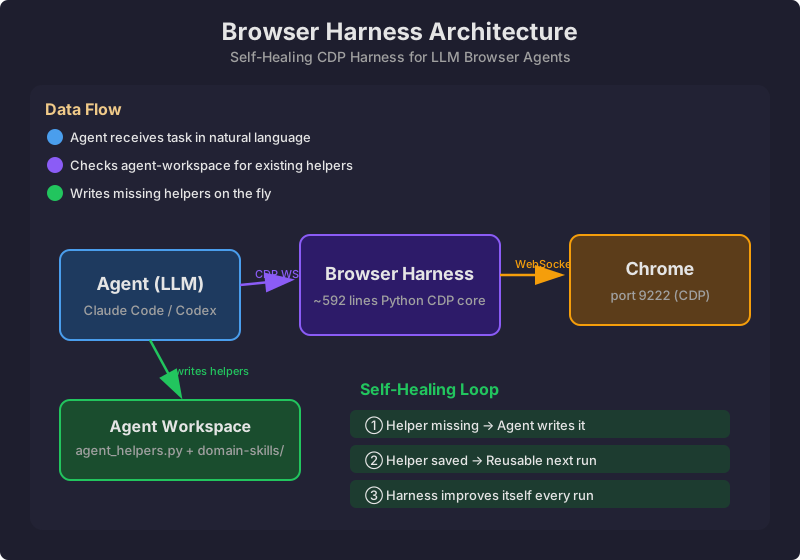
- Agent — Claude Code or Codex running the harness
- Browser Harness Core — ~592 lines of Python that manage the CDP WebSocket connection
- Agent Workspace — editable
agent_helpers.py+domain-skills/directory where the agent writes its own helpers during execution - Chrome Browser — your real browser connected via CDP on
localhost:9222
The flow: Agent receives a task → Checks if it has the right helpers → If missing, writes new ones to agent-workspace/ → Executes via CDP WebSocket → Results stream back → Harness persists the new helper for next time.
🚀 Step-by-Step Setup
Step 1: Clone the Repository
git clone https://github.com/browser-use/browser-harness.git
cd browser-harness
Step 2: Install Dependencies
pip install -r requirements.txtThe core dependency is websocket-client — everything else is standard library.
Step 3: Launch Chrome with Remote Debugging
Close all Chrome windows, then launch with remote debugging enabled:
macOS:
/Applications/Google\ Chrome.app/Contents/MacOS/Google\ Chrome \
--remote-debugging-port=9222 \
--user-data-dir=/tmp/chrome-harness
Linux:
google-chrome --remote-debugging-port=9222 \
--user-data-dir=/tmp/chrome-harness
Windows (PowerShell):
& "C:\Program Files\Google\Chrome\Application\chrome.exe" `
--remote-debugging-port=9222 `
--user-data-dir=C:\temp\chrome-harness
A new Chrome window opens. Tick the checkbox when prompted to allow the CDP connection.
Step 4: Verify the Connection
curl http://localhost:9222/json/versionYou should see a JSON response with browser version, webSocketDebuggerUrl, and other metadata. This confirms Chrome is accepting CDP connections.
Step 5: Run Your First Task
Open the harness with your preferred agent. For Claude Code:
cd browser-harness
claude
Then paste the setup prompt from the README, or simply run:
# quick_test.py
import json, websocket

ws_url = "ws://localhost:9222/devtools/browser"
ws = websocket.create_connection(ws_url)

# Navigate to a page
ws.send(json.dumps({
    "id": 1,
    "method": "Target.createTarget",
    "params": {"url": "https://example.com"}
}))
result = json.loads(ws.recv())
print(f"Tab opened: {result}")
ws.close()
Step 6: Let the Agent Self-Improve
The magic happens when you give the agent a task it hasn't seen before:
"Go to GitHub, find the top trending repository today, and save its README"The agent will:
- Open a browser tab via CDP
- Navigate to GitHub trending
- Read the page content
- If a helper is missing, it writes one to
agent-workspace/domain-skills/ - Next time you run a similar task, the helper is already there
⚙️ Configuration Options
Using Remote Browsers
Browser Harness offers free remote browsers (3 concurrent, with proxies and captcha solving):
# Grab a free API key
curl https://cloud.browser-use.com/new-api-key

# Then configure the harness to use remote browsers
export BROWSER_USE_API_KEY=your-key-here
Custom Domain Skills
The harness auto-generates skills in agent-workspace/domain-skills/. Each skill is a Python file that captures selectors, flows, and edge cases for a specific site:
agent-workspace/domain-skills/
├── github/
├── linkedin/
├── amazon/
└── ...
You don't need to write these manually — the agent creates them during task execution.
🔐 Security Notes
- Chrome's remote debugging port (9222) should NOT be exposed to the network — bind to
localhostonly - The harness runs with the same permissions as your browser session
- Consider using a separate Chrome profile (
--user-data-dir) to isolate sessions - API keys for remote browsers are stored in environment variables, not in code
💡 Real-World Use Cases
| Use Case | Example Task |
|---|---|
| Research | "Visit the top 5 AI news sites and summarize today's headlines" |
| Data Entry | "Log into the CRM and export the weekly report" |
| Monitoring | "Check if our deploy is green on the CI dashboard" |
| Social Media | "Draft and schedule this week's LinkedIn posts" |
| E-commerce | "Compare prices for product X across 3 vendors" |
📊 Compared to Alternatives
| Feature | Browser Harness | Playwright | Puppeteer | Selenium |
|---|---|---|---|---|
| Self-healing helpers | ✅ Agent writes them | ❌ | ❌ | ❌ |
| Natural language | ✅ | ❌ (code) | ❌ (code) | ❌ (code) |
| Real browser | ✅ | ✅ | ✅ | ✅ |
| CDP-level control | ✅ | 🔶 (abstracted) | ✅ | ❌ |
| Lines of core code | ~592 | 10,000+ | 8,000+ | 15,000+ |
| Open source | ✅ MIT | ✅ Apache 2.0 | ✅ Apache 2.0 | ✅ Apache 2.0 |
| Free remote browsers | ✅ (3 concurrent) | ❌ | ❌ | ❌ |
🔗 Resources
- GitHub: https://github.com/browser-use/browser-harness
- Website: https://browser-use.com
- Docs (LLMs.txt): https://docs.browser-use.com/llms.txt
- The Bitter Lesson of Agent Harnesses: https://browser-use.com/posts/bitter-lesson-agent-harnesses
✅ Verification Checklist
After setup, verify everything works:
- Chrome responds on
localhost:9222 curl http://localhost:9222/json/versionreturns valid JSON- Agent can open a tab and navigate to a URL
- Agent can read page content
- Agent-workspace helpers are created during complex tasks
Browser Harness is open-source under the MIT license. This guide was written on May 1, 2026 — check the GitHub repo for the latest updates.