
Self-Host Your Docker Infrastructure with Arcane — A Modern Docker Management UI
Self-Host Your Docker Infrastructure with Arcane — A Modern Docker Management UI
Managing Docker containers from the command line is powerful, but as your homelab grows — with dozens of containers, networks, volumes, and compose stacks — you start wishing for a visual dashboard. Enter Arcane: a modern, self-hosted Docker management UI built with a SvelteKit frontend and a Go backend.
Arcane (5,400+ ⭐ on GitHub) is designed to be the open-source alternative to Portainer that feels modern, fast, and developer-friendly. It supports container management, compose stacks, image management, volume browsing, Git-based deployments, Docker Swarm, and even agent-based remote host management — all from a beautiful dark-themed dashboard.
Why Arcane Is Trending
The self-hosted ecosystem has long relied on Portainer for Docker management, but Arcane brings a fresh perspective:
- Modern tech stack — SvelteKit frontend (same stack as this blog!), Go backend, SQLite (via Turso/LibSQL)
- Beautiful UI — Dark theme, clean layout, responsive design
- GitOps-ready — Deploy compose stacks directly from Git repositories with automatic sync
- Docker Swarm support — Manage Swarm stacks and services alongside regular containers
- Agent mode — Remotely manage multiple Docker hosts via a lightweight agent
- Security-first — Supports Docker Socket Proxy for secure socket access, JWT auth, encryption keys
- Active development — v1.18.x with releases every few weeks, 50+ contributors
Architecture Overview
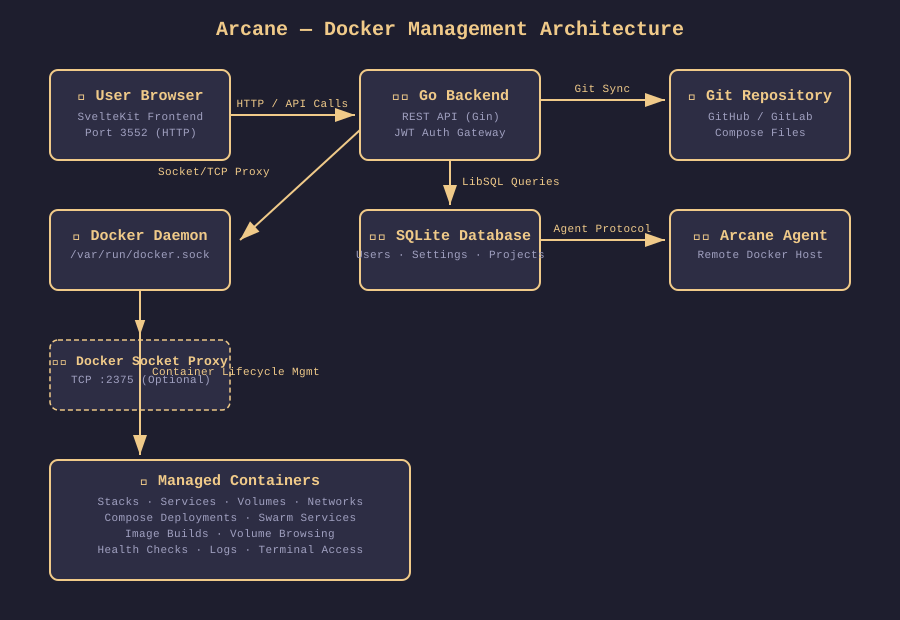
Arcane follows a clean client-server architecture. The Go backend serves as the API gateway, interacting directly with the Docker daemon via its socket (or a TCP proxy). It maintains its own SQLite database for user accounts, preferences, and project configurations. The SvelteKit frontend communicates with the backend through a REST API, providing the management dashboard in your browser. For multi-host setups, Arcane Agents can be deployed on remote Docker hosts, connecting back to the primary Arcane instance.
Prerequisites
Before you begin, make sure you have:
- A Linux server (or VM) with Docker installed (v24.0+)
- Docker Compose (v2.0+)
- A domain name pointing to your server (optional but recommended for HTTPS)
- Basic familiarity with Docker and the terminal
Step 1 — Generate Secrets
Arcane requires two secrets: an ENCRYPTION_KEY and a JWT_SECRET. Generate them with OpenSSL:
openssl rand -base64 32
# Copy the output — this is your ENCRYPTION_KEY

openssl rand -base64 32
# Copy the output — this is your JWT_SECRET
Keep these values safe — they're used to encrypt sensitive data and sign authentication tokens.
Step 2 — Deploy Arcane with Docker Compose
Create a directory for Arcane and a docker-compose.yml file:
mkdir -p ~/arcane && cd ~/arcaneCreate the docker-compose.yml:
services:
  arcane:
    image: ghcr.io/getarcaneapp/arcane:latest
    container_name: arcane
    ports:
      - "3552:3552"
    volumes:
      - /var/run/docker.sock:/var/run/docker.sock
      - arcane-data:/app/data
      - ~/arcane-projects:/app/data/projects
    environment:
      - ENCRYPTION_KEY=your-32-char-encryption-key-here
      - JWT_SECRET=your-super-secret-jwt-key-change-this
      - TZ=UTC
    cgroup: host
    healthcheck:
      test: ["CMD-SHELL", "curl -fsS http://localhost:3552/api/health >/dev/null || exit 1"]
      interval: 10s
      timeout: 3s
      retries: 5
      start_period: 15s
    restart: unless-stopped

volumes:
  arcane-data:
Security tip: For production, use a Docker Socket Proxy instead of mounting the Docker socket directly. See the proxy example in Arcane's GitHub repo.
Start Arcane:
docker compose up -dWait a few seconds, then check the logs:
docker compose logs arcaneYou should see output indicating the server started successfully on port 3552.
Step 3 — Set Up Your First Admin User
Open your browser and go to http://your-server-ip:3552. You'll be greeted by Arcane's setup wizard:
- Create your admin account — username, email, and password
- Review the dashboard — your Docker host's containers, images, volumes, and networks will appear automatically
- Configure settings — optional: set up a custom
APP_URL, configure backups, or enable auto-login for development
Step 4 — Deploy Your First Stack
Arcane makes deploying compose stacks trivial:
- Click Stacks in the sidebar
- Click Create Stack
- Give it a name (e.g.,
nginx-test) - Paste your compose YAML or choose a Git repository
- Click Deploy
Arcane will parse the compose file, create the resources, and show live deployment logs — all from the browser.
Step 5 — Configure GitOps Deployment
For production workflows, connect Arcane to a Git repository:
- Go to Settings → Git Sync
- Add your repository URL and credentials (or use a deploy token)
- Select the branch and compose file path
- Enable Auto Sync — Arcane will automatically redeploy when changes are pushed
This is perfect for managing infrastructure-as-code workflows where compose files live in Git.
Step 6 — Secure with a Reverse Proxy (Optional)
For production, expose Arcane behind a reverse proxy with SSL termination:
# docker-compose.override.yml or a separate proxy compose
services:
  nginx:
    image: nginx:alpine
    container_name: arcane-proxy
    ports:
      - "80:80"
      - "443:443"
    volumes:
      - ./nginx.conf:/etc/nginx/conf.d/default.conf:ro
      - ./ssl:/etc/nginx/ssl:ro
    depends_on:
      - arcane
Then set APP_URL=https://arcane.yourdomain.com in Arcane's environment.
Feature Comparison
| Feature | Arcane | Portainer | Dockge |
|---|---|---|---|
| Tech Stack | SvelteKit + Go | Angular + Go | Node.js + EJS |
| Docker Compose | ✅ Full | ✅ Full | ✅ Full |
| Docker Swarm | ✅ | ✅ | ❌ |
| GitOps Sync | ✅ | ✅ | ❌ |
| Agent Mode | ✅ | ✅ (Business) | ❌ |
| Remote Hosts | ✅ Agent-based | ✅ Agent-based | ❌ |
| Image Scanning | ✅ (Trivy) | ❌ | ❌ |
| Dark Theme | ✅ Native | ✅ | ✅ |
| Self-contained | ✅ Single binary | ✅ | ✅ |
Resources
- GitHub Repository: https://github.com/getarcaneapp/arcane
- Official Documentation: https://getarcane.app
- Docker Hub Images:
ghcr.io/getarcaneapp/arcane - License: BSD-3-Clause
Arcane makes Docker management feel modern and accessible. Whether you're running a single Raspberry Pi or a full homelab cluster, it's a worthy addition to your self-hosted toolkit.